
Image Translator Online
Upload a photo, screenshot, or sign to translate its text and download a new image. Keep the visual context, then compare the result with your original.
106 target languages · JPG, PNG & WebP · Up to 10 MB · Free welcome credits after sign-in
Result will show here
See it in action
A clearer picture, in your language.
Explore translations in English, Chinese, Hindi, Spanish, and Arabic. Slide between each original image and its translation.
Illustrative examples with matching artwork and layout. Generate a translated picture while keeping its visual context.
Feature 01 · Menus & dining
Read the menu before you order
From the daily special to a familiar favorite, find out what is on the menu without typing a word. Translate a clear photo and compare the dish names with the original.
Less guesswork. More time to enjoy the moment.
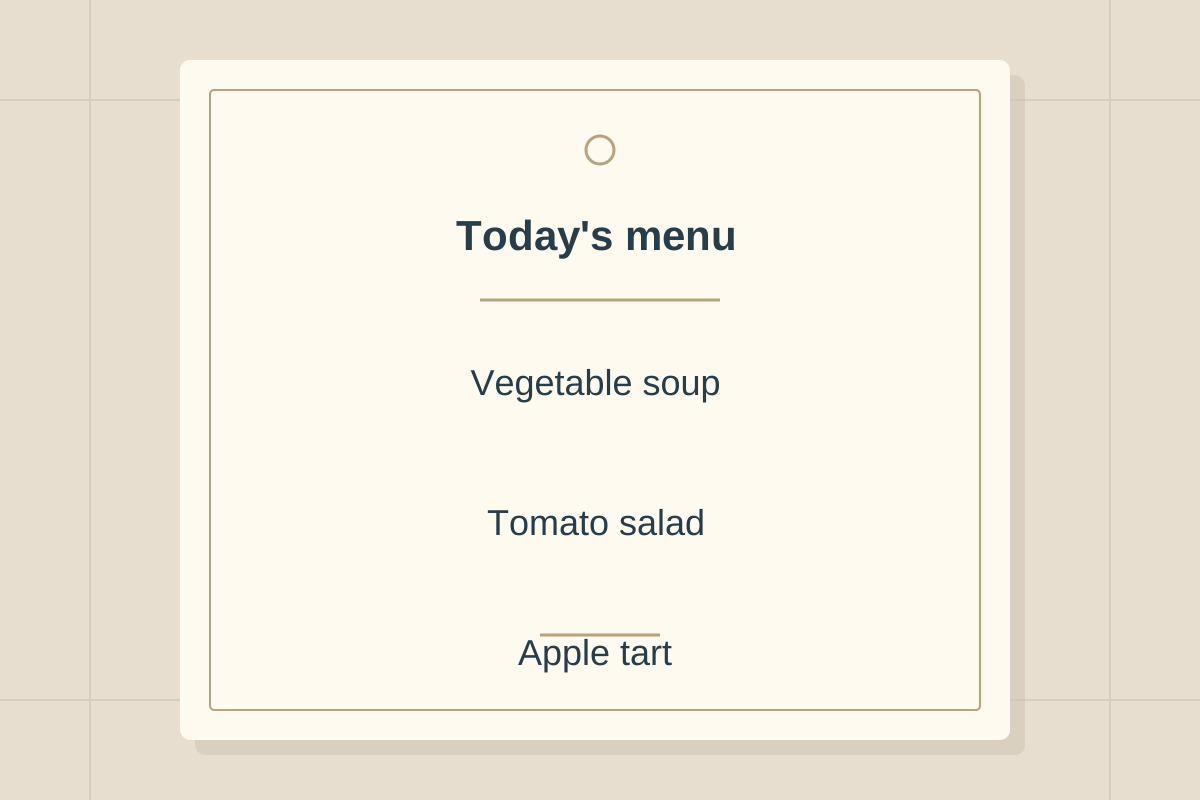
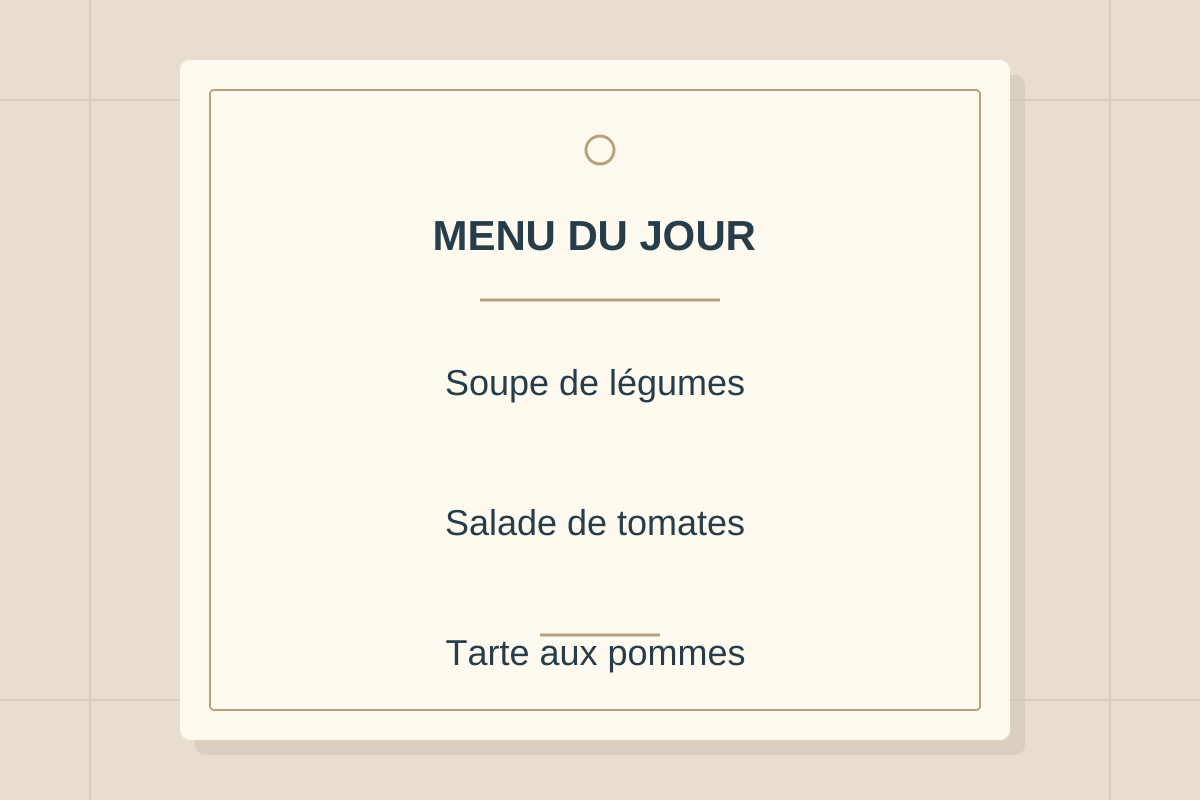
French to English
Feature 02 · Travel & directions
Find your way with less guesswork
An unfamiliar sign should not stop your day. Translate the words on station signs and local notices while keeping the original layout close at hand.
Make unfamiliar places a little easier to navigate.
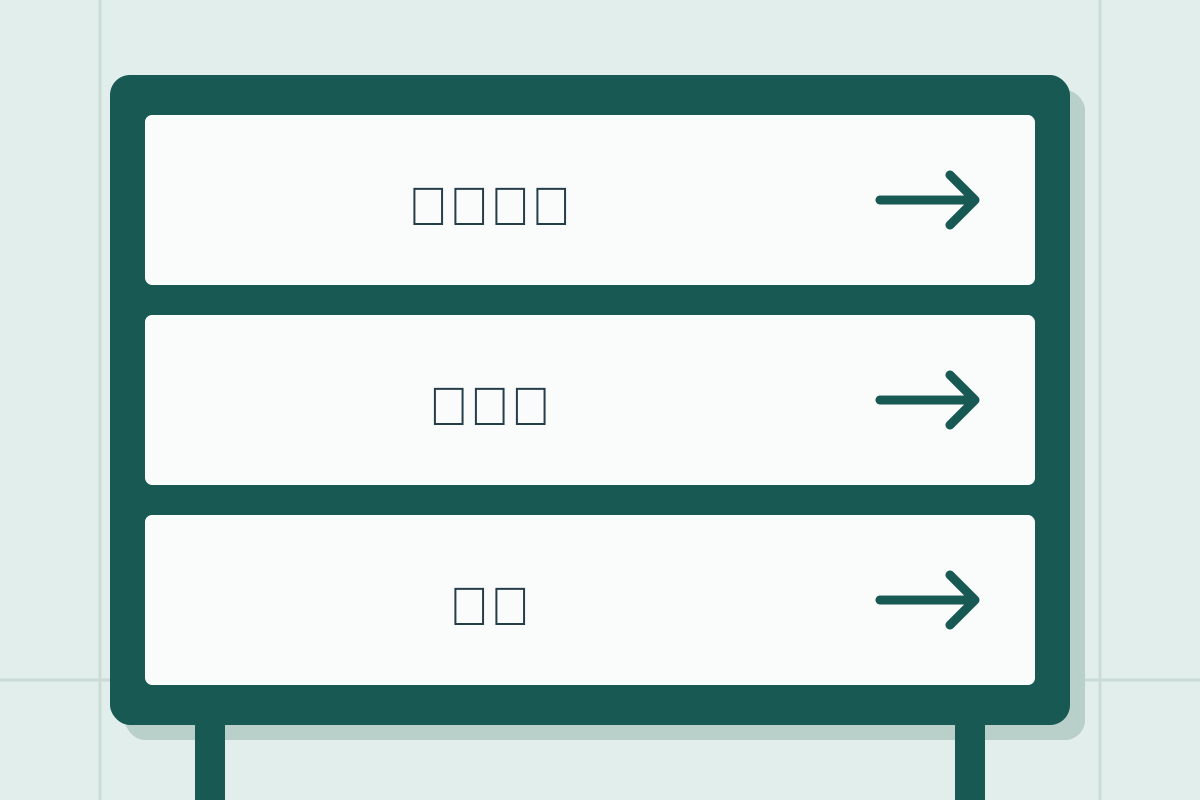
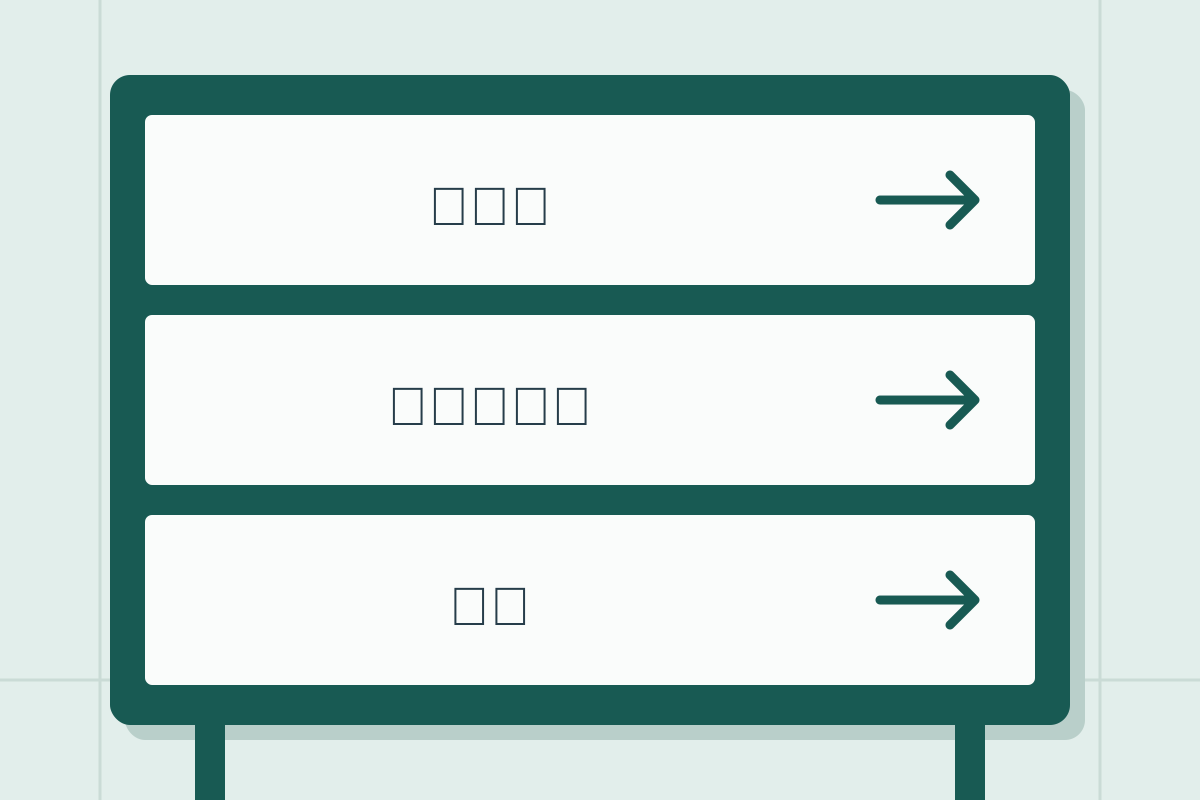
Japanese to Chinese
Drag left or right, use the arrow keys, or choose a view with the buttons. These are illustrative examples, not live API results.
Feature 03 · Labels & everyday life
Small print. A clearer meaning.
Make sense of written care instructions on something you own. Upload a sharp picture and save the translated image for the next time you need it.
Keep everyday instructions within easy reach.
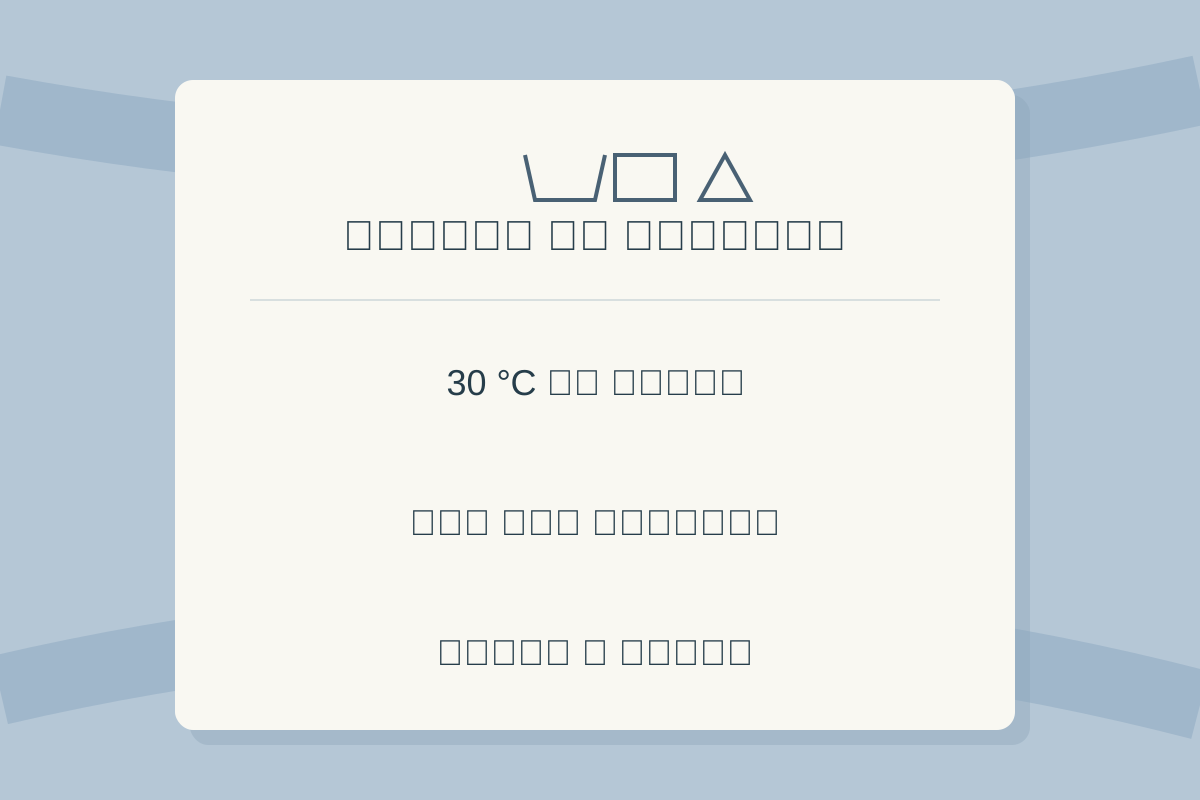
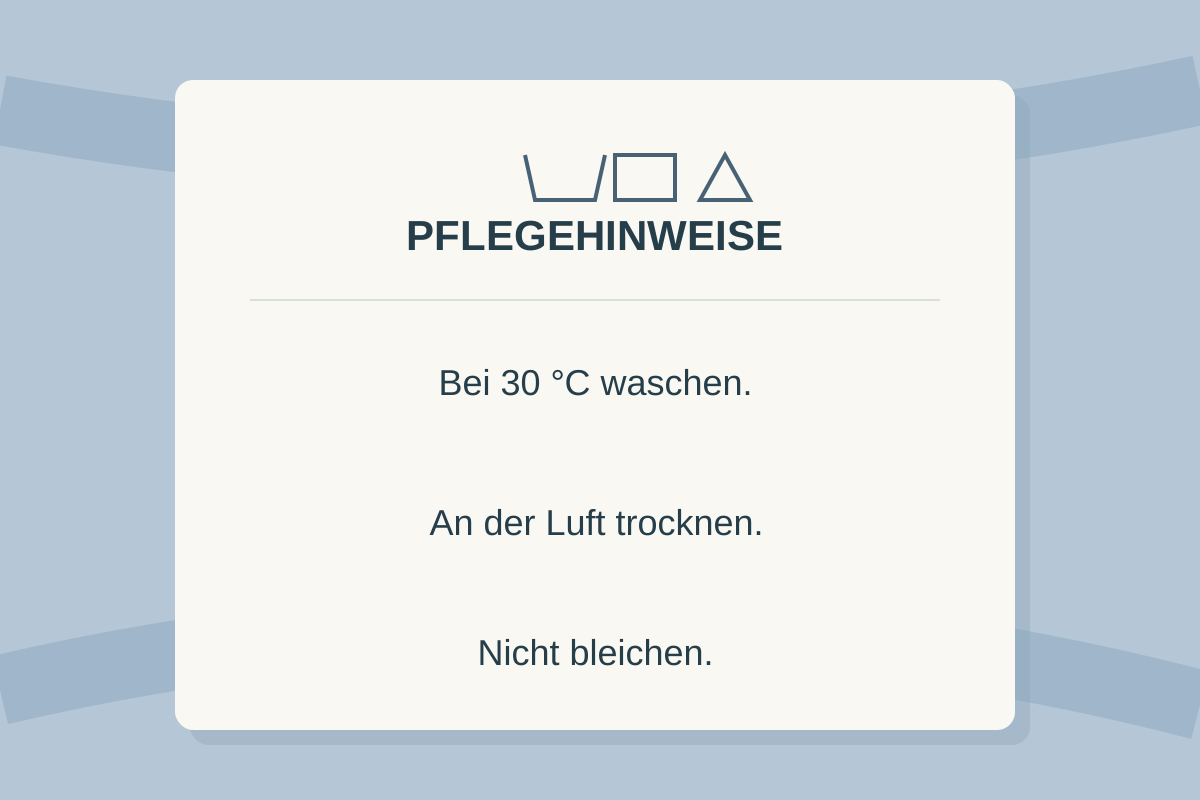
German to Hindi
Drag left or right, use the arrow keys, or choose a view with the buttons. These are illustrative examples, not live API results.
Feature 04 · Work & conversations
Keep the conversation moving
When a message arrives as a screenshot, skip the retyping. Translate the visible words and check the details in the generated screenshot.
From an unfamiliar screenshot to one you can read.
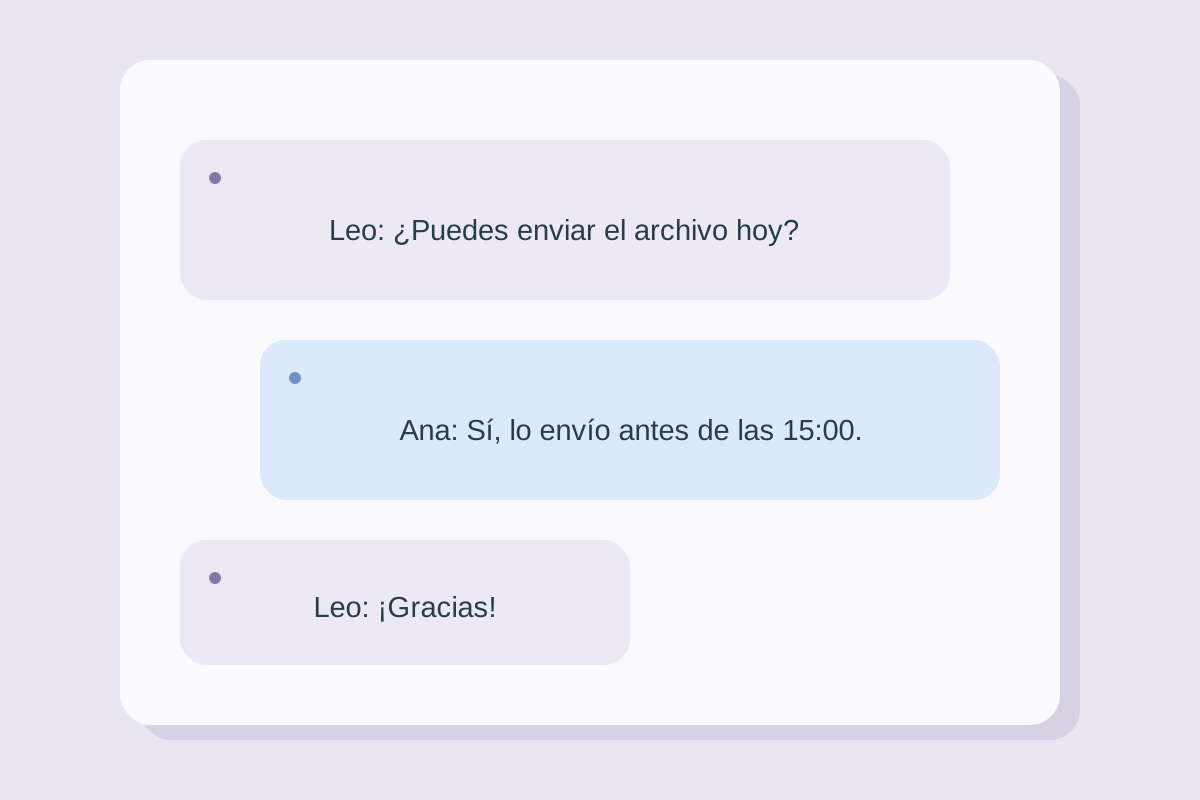
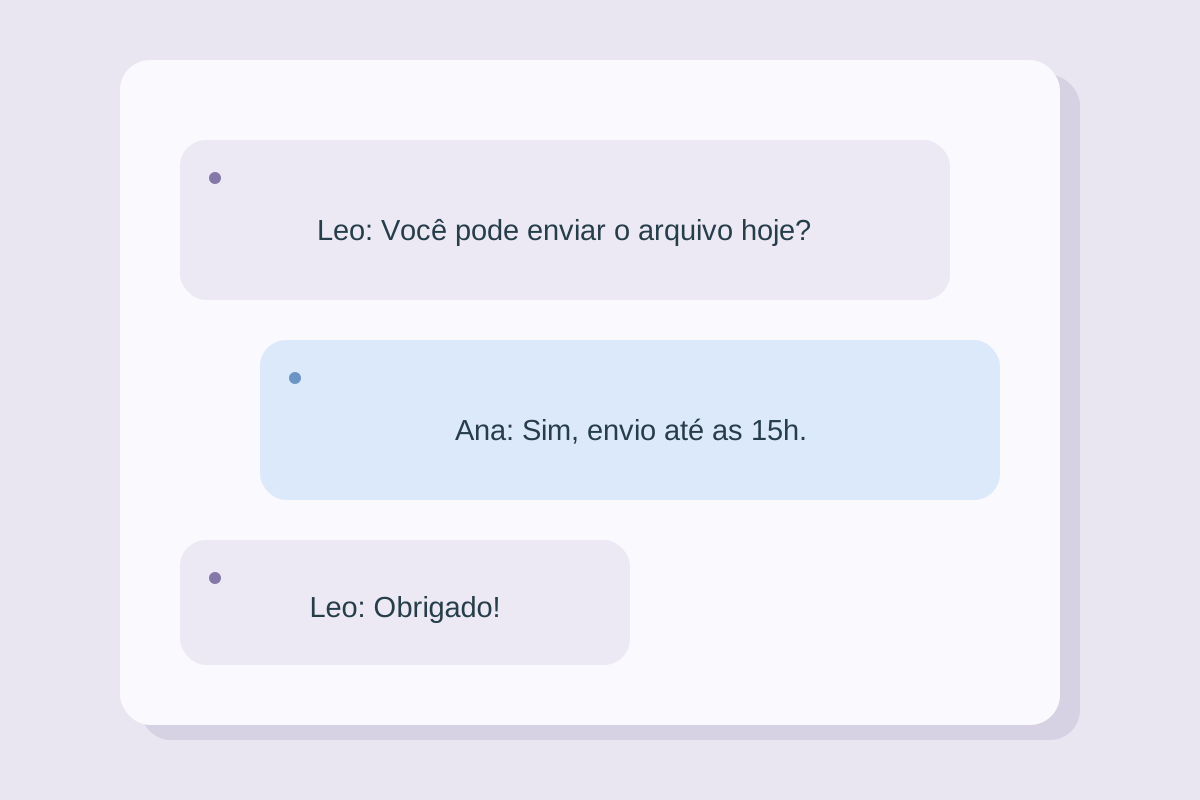
Portuguese to Spanish
Drag left or right, use the arrow keys, or choose a view with the buttons. These are illustrative examples, not live API results.
Feature 05 · Learning & study
Bring new ideas into your notes
A photographed passage can be the start of something worth learning. Compare the translated image with the original while keeping the page structure in view.
Spend more time understanding, less time transcribing.
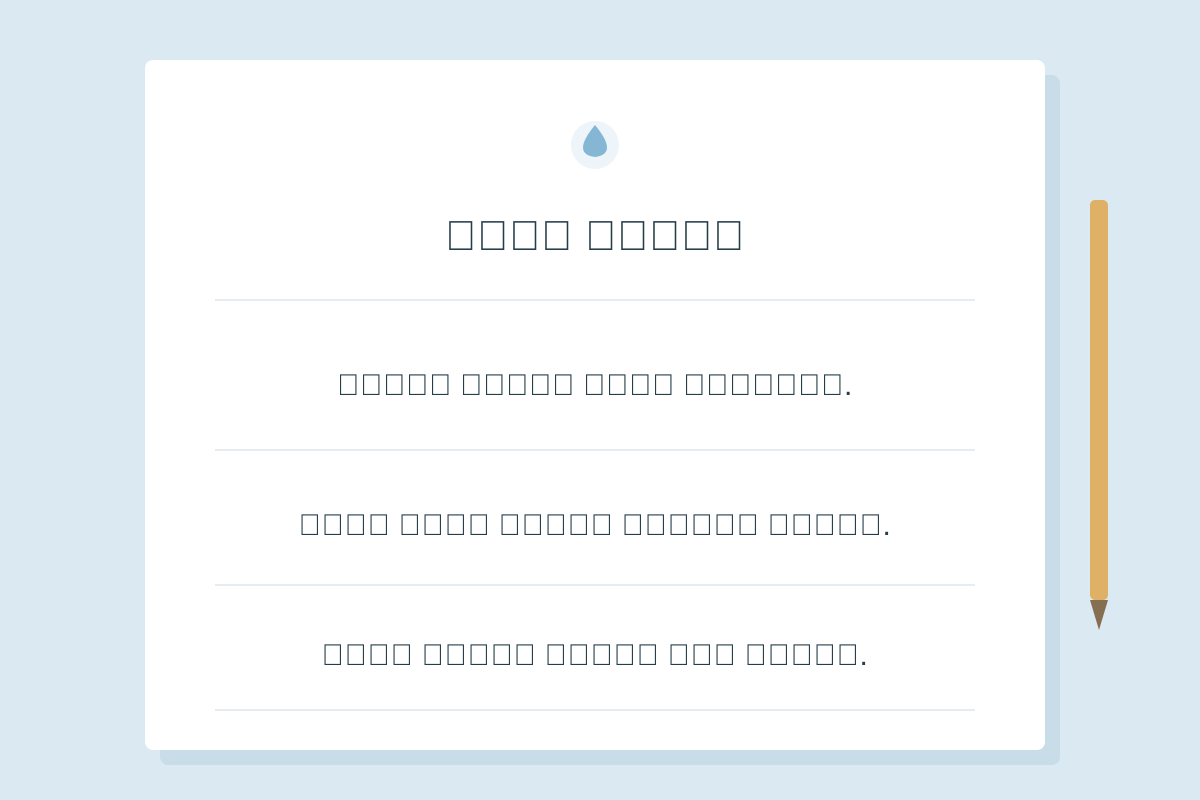
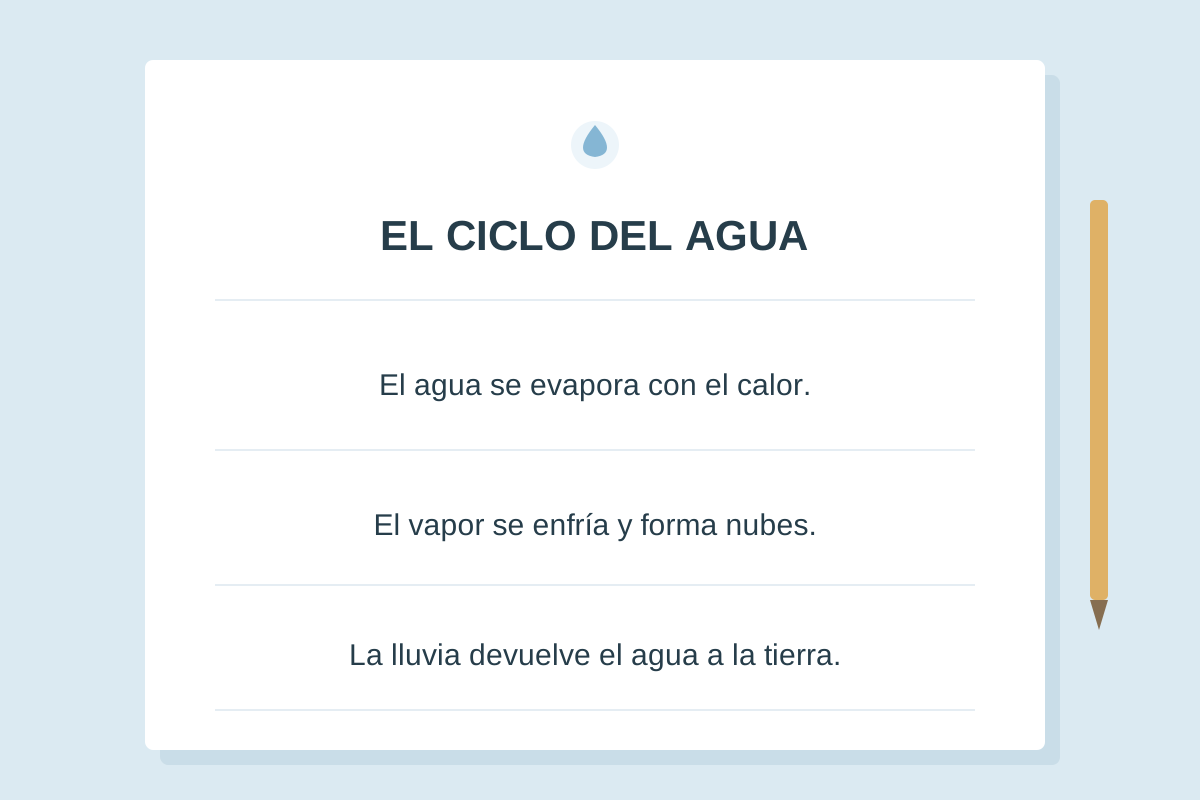
Spanish to Arabic
Drag left or right, use the arrow keys, or choose a view with the buttons. These are illustrative examples, not live API results.
Upload a JPG, PNG, or WebP. Sign in for free welcome credits.
How the Image Translator Works
A picture translator lets you translate the words in a photo without retyping them. Upload the image, choose a target language, and receive a new picture with the translated lettering in three steps:
- 1
Upload your picture
Drag a photo, screenshot, or scan into the box above—or tap to pick one from your device. JPG, PNG, and WebP work, up to 10 MB per image.
- 2
Pick your language
The tool suggests a target language based on your browser settings, and you can search the language menu and choose your target language. The source language is detected automatically, so there's nothing to configure.
- 3
Read the original and translation side by side
Preview the translated picture beside the original and download the result. The translation replaces text regions while retaining the surrounding picture.
Why Translate an Image Instead of Retyping Its Text?
Anyone who has traveled abroad knows the moment: you're staring at a menu, a train schedule, or a warning sign written in a language you can't read—and you can't even type the characters into a translator because your keyboard doesn't have them. That's exactly the problem a photo translator solves. Use the picture as the source and receive the meaning in a translated image.
The same applies to everyday digital life. Screenshots of chats with overseas clients, product labels on imported goods, scanned pages from textbooks, error messages in foreign software—typing these out by hand is slow and error-prone. An image translator works from the picture directly, so the translated wording can stay in the original visual context instead of becoming a separate block of text.
This picture translator keeps your original image visible beside a newly generated version with translated lettering. That side-by-side view helps you check a price, date, or name against the source while preserving the picture's visual context. When it looks right, download the translated image.
When People Reach for a Picture Translator
Travel
Menus, street signs, museum placards, transit maps, hotel notices. Point your phone camera, upload, and order dinner with confidence instead of pointing and hoping.
Study and research
Translate passages from foreign textbooks, scanned articles, or lecture slides, then save a translated picture that keeps the page's visual structure.
Shopping and e-commerce
Decode ingredient lists, care labels, and product specs on imported goods before you buy—whether you're standing in a store or browsing an overseas marketplace.
Work and messaging
Screenshots of chats, documents, and software dialogs from international colleagues become readable in one step—no retyping, no switching between apps.
Translate Pictures into 106 Languages
Choose from 106 target languages, including English, Chinese, Hindi, Arabic, Spanish, French, Japanese, and more. Search by language name to find your preferred option. Quality varies by language and image clarity. Because the source language is recognized automatically, you can feed the tool a Japanese street sign, a French invoice, or a Russian app screenshot without telling it which is which.
Whatever language your browser speaks is what you'll see by default, so most users never touch the language selector at all. Upload, click translate, done.
Tips for the Most Accurate Image Translation
- Keep it sharp. Blurry photos are the number-one cause of misread text. Hold your phone steady or use a screenshot instead of photographing a screen.
- Mind the light. Glare and deep shadows can hide characters. Even, indirect lighting gives the cleanest results.
- Shoot straight on. Text photographed at a steep angle or wrapped around a curved surface—like a bottle label—is harder to recognize. Flatten or crop when you can.
- Crop to the text. Removing busy backgrounds helps the recognizer focus on the words that matter and speeds things up.
- Check numbers and names. Always verify prices, dates, and proper nouns against the original text shown beside the translation—especially for anything legal, medical, or financial.
Your Pictures Stay Yours
Images can contain personal information, from receipts to private conversations. This application does not keep an image gallery or translation history. For image translation, your picture is first checked by SeeAPI for NSFW content; if it passes, it is sent to Kie to generate the translated picture. Avoid uploading sensitive material unless you are comfortable with that processing. Our privacy page explains what the application sends and how this differs from the provider's own policies.
Frequently Asked Questions
Is this picture translator really free?
Yes. Sign in with Google to receive free welcome credits. Each successful picture translation costs 3 credits. The result is a new image with the text translated into your chosen language.
Which image formats are supported?
Upload JPG, PNG, and WebP images up to 10 MB each on any plan. Each successful image translation costs 3 credits.
What languages can I translate pictures into?
Choose from 106 target languages, including English, Chinese, Hindi, Spanish, and Arabic. Search the language menu to find yours. The source language is detected automatically. Translation quality varies by language and image clarity.
Do you store my images?
This application does not save uploaded images to a database or keep a translation history. Kie processes the image and generates the translated result. The provider may retain uploaded and generated files under its own policies. See our privacy page for details.
Why was some text missed in my translated image?
Text recognition works best with sharp, well-lit, straight-on images. Blurry photos, heavy shadows, decorative fonts, and text on curved surfaces can all reduce accuracy. Retaking the photo or cropping tightly around the text usually fixes it.
Can I use it on my phone?
Absolutely. The picture translator is fully responsive, so you can snap a photo of a menu, sign, or label with your phone camera and get a translated image right in the browser—no app download required.
Read our guide to how image translation works for practical tips on screenshots, menus, labels, and scanned pages.
Ready to translate a picture? Scroll up, drop in an image, and compare the translated result with the original.